
Delegates
In order for parents or others to receive account notifications, view a student's account and make e-payments, the student must set them up as delegates. Under the Federal Family Educational Rights and Privacy Act of 1974 (FERPA), students must give us permission before we can release information about their educational record/student account to anyone. Permission can be granted by requesting delegate access.
If a third-party is paying on your behalf (ex: your employer) and requires an invoice in their name, please see Third-Party Billing.
How to Share Your Information with Delegates
Students can grant access to their account information by following these instructions. Delegates will receive regular account notices by email for charges due on the account, and they can also be given permission to make online payments.
While a student has the option of updating preferred names and pronouns in my.harvard, their delegate(s) will not be able to view these changes. Only the student's legal name, as it appears on billing statements, is visible to delegates.
Please note that only students are able to set up and remove delegates.
See a diagram of the delegate account view, below.
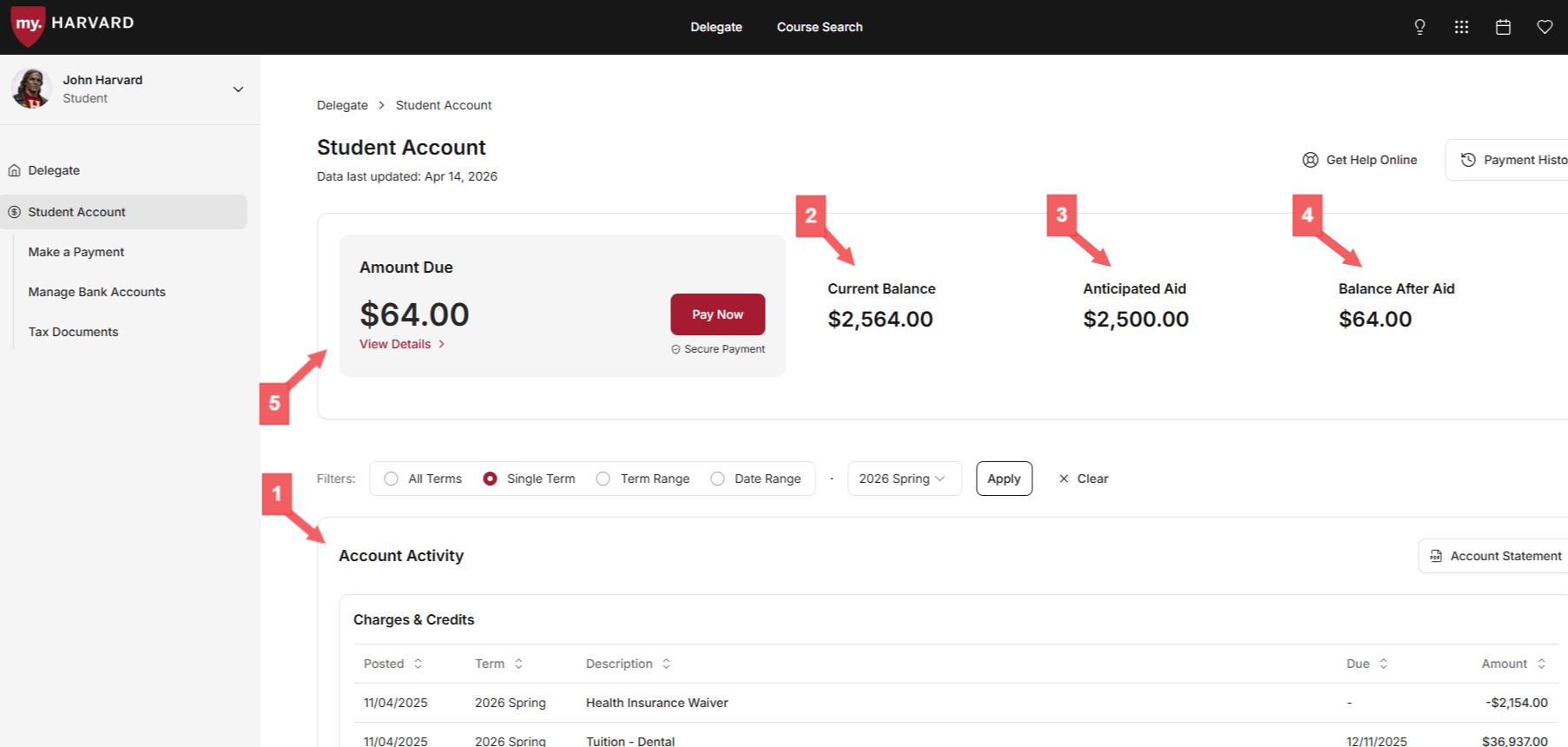
- Account Activity: A detailed listing of all transactions (charges and credits), the total of which corresponds to the Current Balance (2). It defaults to the current term, but can also be filtered by term/date range. An official invoice can be printed/downloaded by clicking on "Account Statement" in the top-right of the Account Activity box.
- Current Balance: The total of all charges and credits in Account Activity.
- Anticipated Aid: The total reported financial aid that has not yet been disbursed. A breakdown of anticipated aid lies just below the Account Activity section.
- Balance After Aid: The Current Balance (2) less Anticipated Aid (3).
- Amount Due: Amount Due, which equals Balance After Aid (4), reflects the total of unpaid charges not currently covered by financial aid, and is updated in real-time to reflect new charges, payments, and aid. Clicking on "View Details" reveals the individual charges (and due dates), and for further clarity, categorizes them as "Due Now" and "Not Yet Due."